Kindle Weather Dashboard
I've been wanting to have an e-ink home display for a while now, and jailbreaking a kindle has seemed like the easiest way to do it, given previous articles I've read. So when another article about the same sort of thing popped up on HackerNews, I asked in the comments how hard it would be to jailbreak a kindle, and what models would be appropriate. I was very quickly sent a link to kindlemodding.org, and the next day I went into my local branch of Cex to get ripped off. They had a Kindle 7th generation on sale for £35, and after checking on the website that it was jailbreakable, I grabbed it (I'm aware that I could probably have gotten a better deal online, but when you've got my flavour of neurodivergence, you just want to start a new shiny project immediately).
After getting home again, I went through the steps to jailbreak it, and what an absolute faff that was. I think I had to install about 4 different jailbreaking tools onto the kindle throughout the tutorial, and in the end I couldn't actually get full programming control over it, like I'd seen other people doing. It was also having weird networking behaviour, where my router could see that it existed, but no other device on my network could. Pings and even the Nmap network scanner just completely failed on it. Somewhat dejected, I put it down for the night and had a bit of a rethink.
After a day or two, I suddenly remembered seeing "Experimental browser" in a menu, and opened it. It loaded the Google homepage just fine, with the image and everything, though it wouldn't let me search for some reason. This didn't really matter, as I didn't plan on using it to load any pages other than my own. Python has a very handy simple web server, which can be launched with python3 -m http.server, and simply serves all the files in the current directory as a HTTP server. I quickly stole a JavaScript REPL from tlrobinson's GitHub, put it into an index.html, and was able to get some details about the kindle.
A REPL is essentially just a text field where you input code, it gets executed, and the result is printed to the screen, in a loop (Read, Execute, Print, Loop). Web browsers usually have a Developer Tools window that lets you do this with JavaScript, but I didn't see anything like that on the kindle's browser, so I had to put one inside a web page to use.
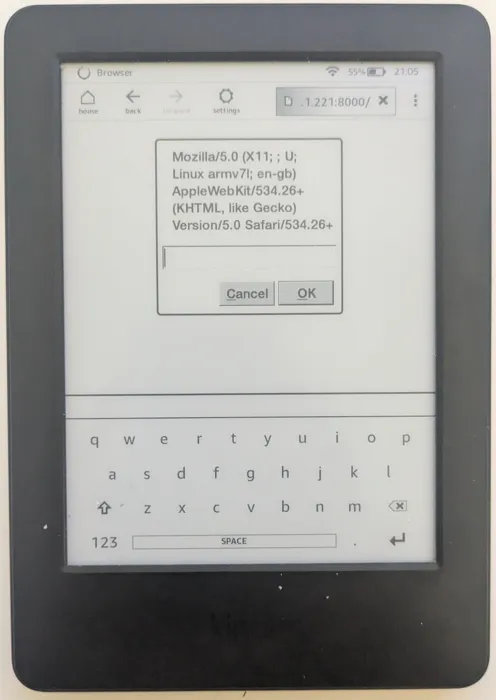
Next was to find out the size of the available screen area. The REPL told me that screen.width was 600, and screen.height was 800, which looks about right, but screen.availHeight was also 800, which definitely wasn't right. screen.availHeight is meant to be the height of the actual area in a web page that is available to put content in, so the screen height minus the address bar height etc. Since I could see that the address bar did in fact have a non-zero height, the Kindle was lying about its available height. After some trial and error with a test image, removing all the margins and borders around it with some CSS, I found that the actual available size is 600x708.
Once I had that, I started work on making a UI. I decided that the easiest way to have everything work was to create a small flask application for the server, and whenever the image is requested, it will generate it on the fly using PIL, and serve it. I'm pretty familiar with PIL from previous personal projects, so I knew it likely wouldn't be too hard to do, and I've used flask a bit at my job, so that part wouldn't be too hard either. I already had a small project that pulled weather data from the BBC, using an undocumented API (I think I came across it while trying to find a free-ish weather provider), and my code already formatted it into objects for hourly and daily reports, so getting the actual data wasn't too much of a problem.
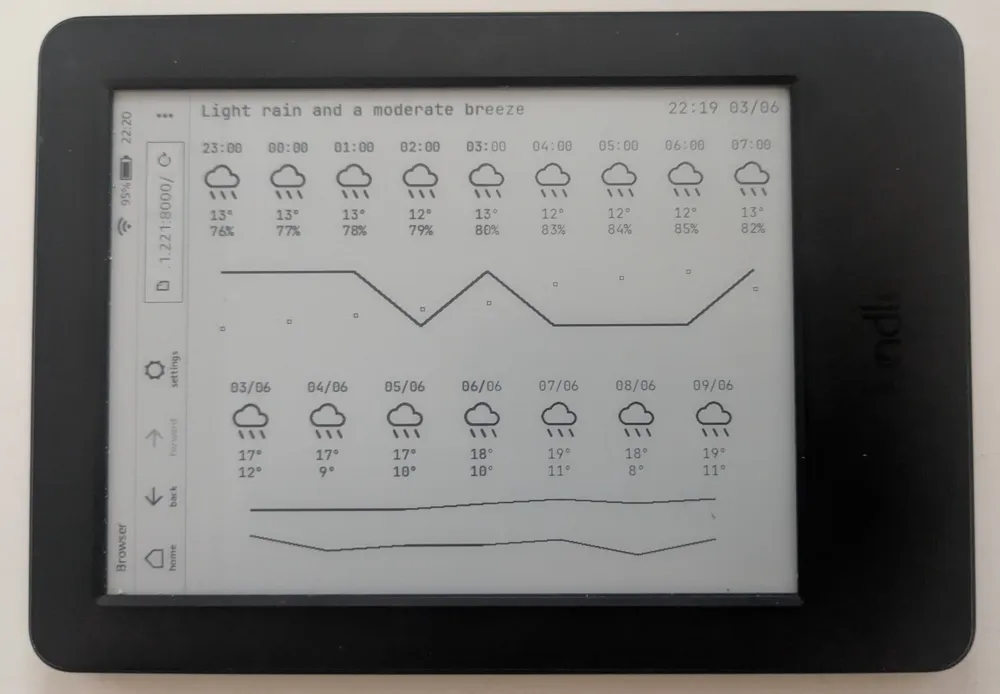
For the design, I put the current weather text at the top of the screen, along with the date and time. Then below that, I put the next 9 hourly reports. Why 9? Because that's how many fit with the size I chose. I used the ImageDraw library in PIL to paste a weather icon and some example text across the screen, using some variables to adjust spacing, padding, positions etc. Then below that, I added a graph view, showing both the temperature and the humidity. I wanted to make the humidity line dotted, but ImageDraw doesn't have a builtin to do that, so for the moment, I just used little squares instead. By the end of the project, it grew on me enough that I kept it, with some minor tweaks (There's nothing more permanent than a temporary solution). Then below that, I added the next 7 daily forecasts, but replaced the temperature and humidity readout with the maximum and minimum temperature, and graphed them as well. One minor gripe I have is that ImageDraw doesn't anti-alias when using its line function, so the lines are all very jagged and look a bit crap.
Afterwards, I started trying to find a set of icons that I could use. I investigated the Google Material icons, but I couldn't find a full set that included all the types of weather I wanted, and a lot of icons I did find didn't really match the style I wanted. After pondering this for a bit, I tried just pulling the icons out of the BBC weather page itself. They were embedded as SVGs, using <symbol> tags, which I hadn't seen before, but I figured I could just deal with the XML in python. One thing that tripped me up for a while is the symbols wouldn't display correctly as individual SVGs. After a while of poking at them, I realised they had no fill or stroke attributes, so they were all completely invisible.
After some more looking around, I finally found that the BBC website has a CSS file that includes the fill parameters for all the SVG's parts, and with some regex and python munging, I could re-insert them back into the SVGs, and got some lovely icons to use. The fill part was a bit of a waste of time though, as I ended up just making all the fills black so they looked nice on the kindle display. I also tweaked my code a bit to make it automatically pull down the page, pull out the icons and convert them to PNGs. For some reason, this broke it completely, so I had to spend some time fixing it up again. Apparently, somewhere along the way the size attributes got dropped, and putting them back in again fixed everything up nicely.
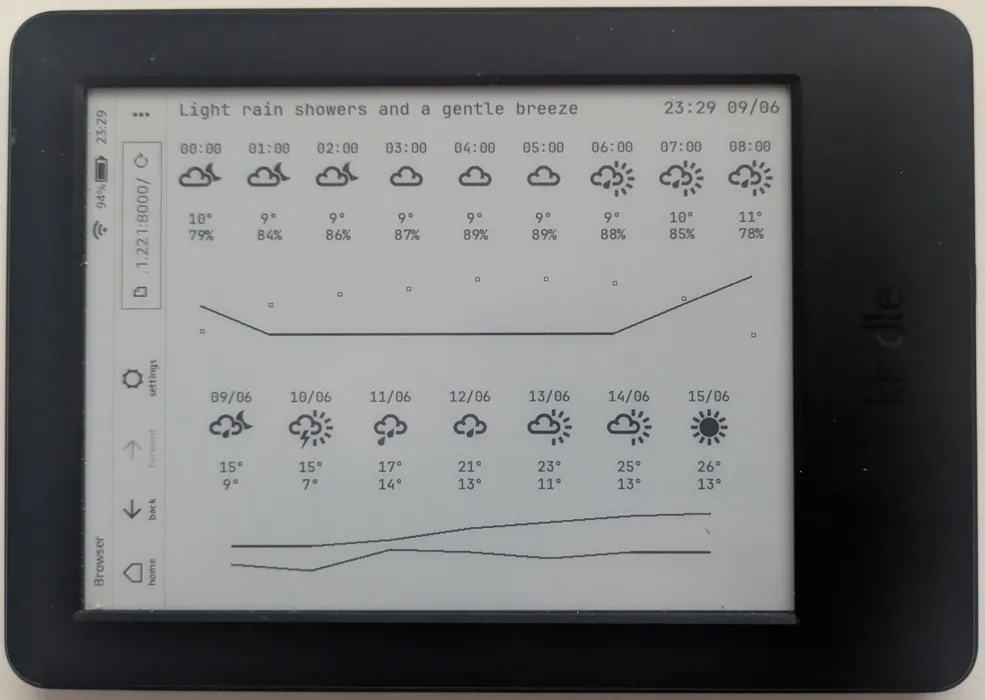
HOWEVER, I want to distribute this project publicly, and I was informed that distributing a script that automatically pirates the BBC weather icons might be legally dubious, and I really don't have the money for lawyers. Even though I had struggled to find a working icon set, one of my friend pointed me towards this icon set, which had an almost matching set of icons. I did still have to find a few substitutes, but most of them probably won't actually come up anyway (I hope I never see a tropical storm in the north of england). I wrote another quick script to pull down the icons from the github page and give them the expected names from the bbc weather icons. This is the script I will be including in the download, and all I have to do to follow the license (the SIL open font license) is to give credit to the original author and link to the pge. I did not create any of these icons myself, I am simply using them in the project. I'll also include the jetbrains mono font that I like to use, as the website explicitly says I can use it in my own applications.
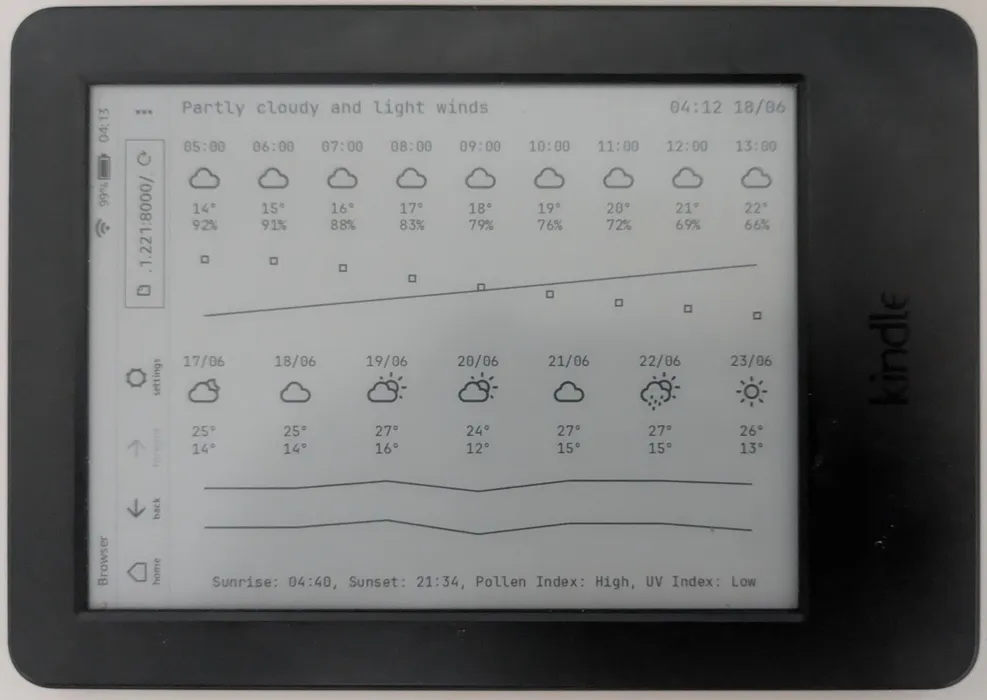
One final thing I wanted to do was to fix up the graphs. The PIL Imagedraw line function doesn't antialias lines, so they end up looking very jagged and kinda crappy. I was considering using SDFs to generate a set of line segments that I could render out using a custom renderer and include antialiasing with that, but I saw a comment online that mentioned rendering the lines on a larger image, then resizing it and pasting it into the original image. This made sense, and seemed easier, so I implemented it that way instead. I added in a scaling factor of 4 for all the graph drawing, and rendered them to a new image, which I then scaled down with antialiasing enabled, and pasted into the original image. This did result in some parts of the graph lines being cut off, so I extended the height of the image a little bit to include them. It caused some more problems with the humidity graph, which I actually liked rendering as little squares, as they got reaally cut off both at the top and the bottom, so I used the original rendering method for them, and drew them after pasting the graph image in. I also scaled them up a bit to make them a bit more visible, and I do quite like how they turned out.
One final issue popped up when I was testing it out, where if the temperature remained constant throughout all of the hourly readings, then the vertical range of the graph would be zero, and it would mess up the rescaling calculations. I solved that by just adding 1 to the maximum value of the temperatures, which ensures they will always have a range of at least 1 degree. I figured this would be extremely unlikely to be an issue with the daily graph, as it would mean that all of the maximum and minimum values would be the same for an entire week. If that does eventually happen, I'll probably just ignore it.
Now that the software side of the project was done, it was time for the hardware. I didn't need too much, just a little mount for the kindle in my kitchen, so I quickly made something in OnShape. I know that youtubers love to be sponsored by OnShape (or they did at one point at least), and usually that would make me extremely dubious of a product, but it was recommended to me by a friend, so I tried using it, and now I use it for all my CAD needs. It's not perfect, but it works fine for the majority of the things I want to do.
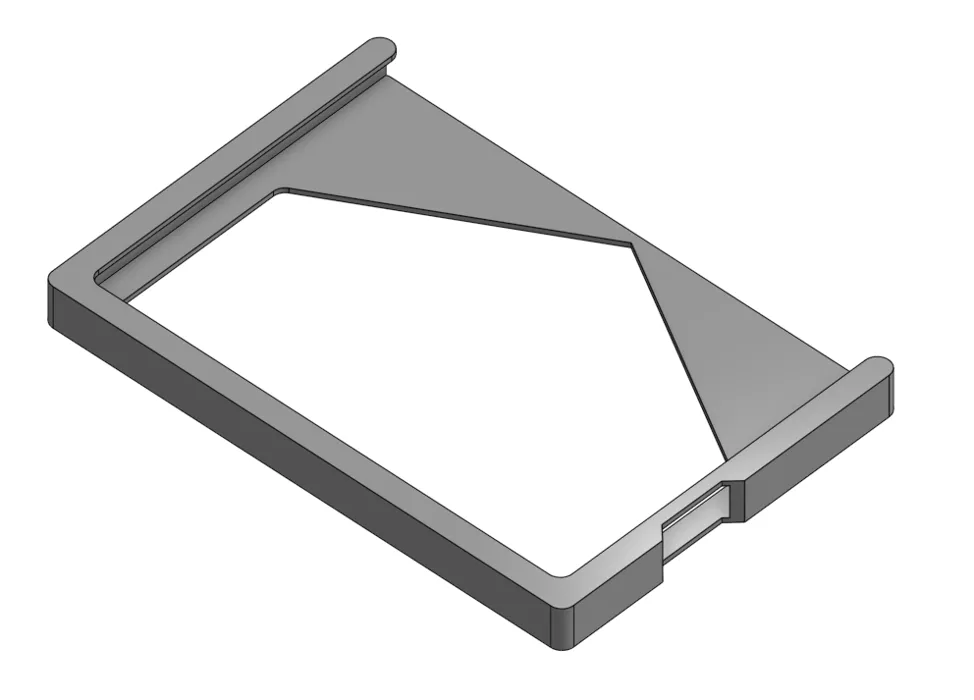
The model is essentially just a pocket with some rounded off corners and a hole in the side for the charging cable to feed through. I also added a big cutout in the back, with angles steep enough for my 3D printer to be able to print without any support material. The large areas left on the back are perfect for some command strips to stick it to the wall. The kindle isn't particularly heavy, so it didn't need any special strength considerations, and it only took me two tries to get right (I forget to add the charging hole on the first version). I've also included the model in the download, in case you want to print your own.
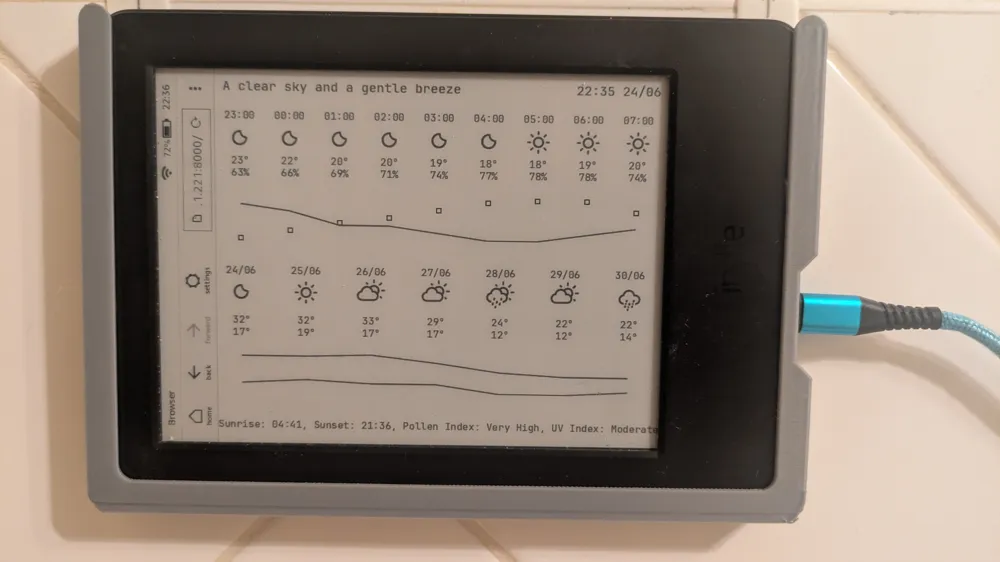
Overall, I'm pretty happy with the final product, as it does pretty much exactly what I need it to. I will probably end up tweaking it every so often, if I find that it is deficient in some way, but I'm happy to say it's done.
Downloads:
Back to Main Page
 Copyright © 2026 Amy Shaw